netstat -ano in Command Prompt. Note the process ID (PID), then match it under Task Manager → Details. A connection proves network activity; it does not prove tracking, malware or the content sent.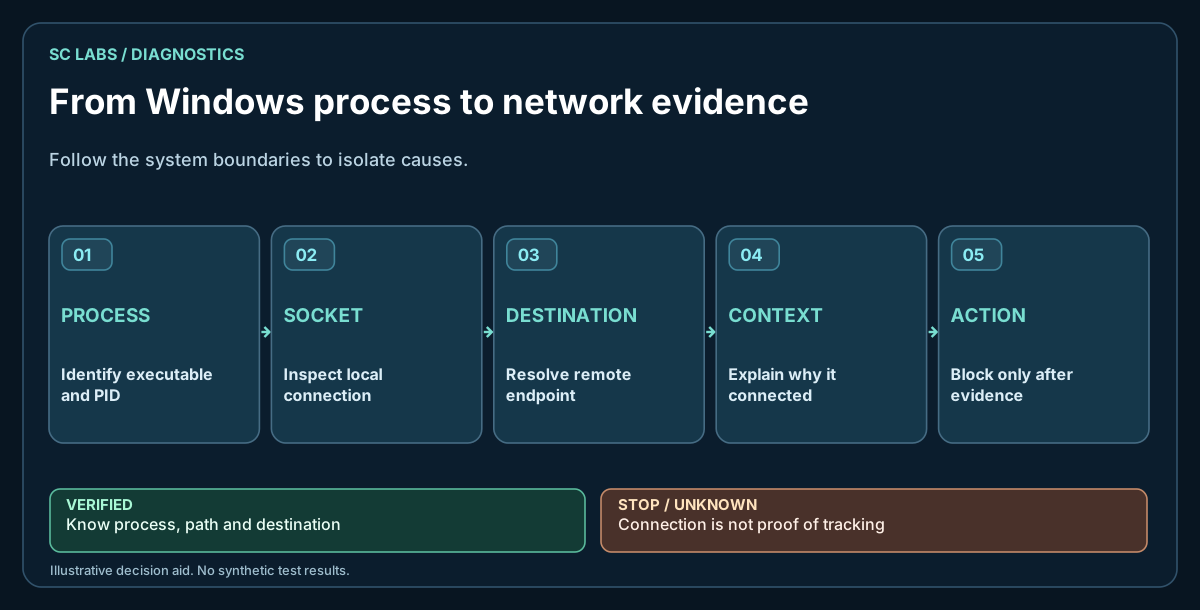
A quick Windows check you can repeat
- Press Win + R, enter
resmonand open the Network tab. Check processes with network activity and TCP connections. - Or open Command Prompt and run
netstat -ano. The last numeric column is the PID; remote addresses and ports are displayed numerically. - Open Task Manager → Details and match the PID to the running process. A process can host multiple services, so the name is a starting point, not a verdict.
- Repeat the observation when the application starts or stops. Do not block system components based on one unexplained connection.
Reference: Microsoft netstat command documentation. For a wider review, use our Windows privacy checklist.
PowerShell: show TCP connections and process IDs
For a repeatable check, open PowerShell and list established TCP connections with the owning process ID:
Get-NetTCPConnection -State Established | Select-Object LocalAddress, LocalPort, RemoteAddress, RemotePort, OwningProcessUse OwningProcess to find the process in Task Manager → Details. This command shows established TCP connections at that moment; it does not capture every UDP exchange, browser sub-process or previous transmission. A remote IP alone does not reveal what data was sent. See the official Microsoft Get-NetTCPConnection reference.
Start with process-to-connection mapping
Windows exposes active TCP and UDP activity through built-in system interfaces and tools. The useful record normally includes the local process, process ID, local address/port, remote address/port and connection state. Mapping those fields back to an executable lets you answer the first question: which application is communicating?
Built-in ways to inspect activity
Task Manager and Resource Monitor provide accessible views of processes and network activity. Command-line tools can expose connections in more detail, and PowerShell can query connection state programmatically. For occasional troubleshooting, those built-in options are often enough.
A focused tool becomes useful when you want history, repeated process identity, startup context, change evidence or a safer path from observation to an action. TrackerRadar is aimed at that visibility-and-controlled-action layer.
What a remote endpoint tells you
An IP address or hostname can help identify a service, CDN or provider, but interpretation requires context. Modern applications use shared cloud infrastructure, content delivery networks and background update services. Seeing a connection to a large cloud platform does not tell you the exact payload or purpose.
Encrypted HTTPS traffic intentionally hides content from a basic socket monitor. You can often see that a process connected to an endpoint, but not the application-level data exchanged inside TLS.
Network activity is not automatically tracking
A browser checking for updates, a collaboration app maintaining a session and a telemetry client can all produce outbound connections. Treat network evidence as a starting point. Combine it with executable identity, timing, application settings, startup behaviour and known purpose before assigning a label.
When blocking is appropriate
Firewall rules can restrict an application, but blocking before understanding the dependency may break updates, login, licensing or core features. A safer workflow is:
- Identify the exact executable and active connection.
- Confirm that the process path and publisher match the application you think it is.
- Observe whether the connection is recurring and when it appears.
- Check the app's own settings and documented network requirements.
- If you choose to block, scope the rule narrowly and record the prior state.
- Keep a clear restore path.
This is why reversible actions are stronger than generic “block everything” controls.
For privacy reviews, add more evidence
Network visibility answers only one layer of a privacy question. Installed software, capability permissions, startup entries and Windows settings also matter. Use the Windows Privacy Audit as a broader checklist, and read Local AI vs Cloud AI Privacy when evaluating AI-related data flow.
Bottom line
If you want to know which Windows apps connect to the internet, begin with process-to-connection evidence. Do not jump from “connection exists” to “tracking confirmed.” Good visibility separates observation, interpretation and intervention.
Official Windows reference
Microsoft documents the netstat command, which can show active connections and associated process identifiers. A PID and remote address are useful clues; neither alone proves advertising tracking or unauthorized data transfer.